
香港の香港科技大学(HKUST)で行われた研究によって、次世代ディスプレイ技術として注目される「量子ロッドLED」が抱えていた課題が解決され、世界最高性能の緑色発光を実現することに成功しました。
この新技術は、従来の量子ロッドLEDと比べて約3倍の50万 cd/m²という明るさを達成したほか、22000時間以上という長寿命も兼ね備えています。
一般的なLEDディスプレイなどは、最大で500〜1500 cd/m²程度であり、量子ドットディスプレイが1500〜3000 cd/m²程度であることを考えると超高輝度と言えるでしょう。
このレベルの明るさがあれば日差しの強い屋外でも画面がはっきり見えるスマートフォンが作ったり、地球の夜景をまた一段と明るくすることも可能です。
⇧ 消費電力も削減されるのかしら?
VagrantとVirtualBoxでAlmaLinux上にOllamaでGemma 3nの環境構築
ちょっと前に、
⇧ 上記の記事で、「Gemma 3n」を自分で構築したサーバーで動かす方法を調査していて、
などでは動作させることが困難そうということが分かりましたと。
ちなみに、「1. Google Colaboratory」については、
⇧ バックグランドのプロセスとして実行させれば実現できるっぽい。ただ、肝心の動作確認が成功したのかどうかを記載してくれていないので、「curl」による外部リクエストで動作するのかが分からない...
で、今回は「VagrantとVirtualBoxでAlmaLinux上にGemma 3nの環境構築」を実現しようということなのだが、残念ながら「Vagrant」で利用できる「Rocky Linux」の「box」がバグっているようで、動作しなかったので、「AlmaLinux」の「box」を利用することにしました。
ちなみに、
■VagrantとVirtualBoxのバージョン
C:\Users\toshinobu>winget list
名前                                   ID                                     バージョン        利用可能         ソース
-----------------------------------------------------------------------------------------------------------------------
Vagrant                                Hashicorp.Vagrant                      2.4.3             2.4.7            winget
Oracle VirtualBox 7.1.4                Oracle.VirtualBox                      7.1.4             7.1.12           winget
...省略

C:\Users\toshinobu>winget install Oracle.VirtualBox --version 7.1.10
C:\Users\toshinobu>winget upgrade Vagrant --version 2.4.7

C:\Users\toshinobu>winget list
名前                                   ID                                     バージョン        利用可能         ソース
-----------------------------------------------------------------------------------------------------------------------
Vagrant                                Hashicorp.Vagrant                      2.4.7                              winget
Oracle VirtualBox 7.1.10               Oracle.VirtualBox                      7.1.10            7.1.12           winget
...省略
⇧ といった感じのバージョンの組み合わせを利用しています。
とりあえず、毎回、バージョンの組み合わせを模索するのが地獄なんだが...
話を元に戻して、「Gemma 3n」の動作するサーバーを構築してこうと思うのだが、
■GPU
■Vagrantのbox
■Vagrantで仮想ディスクサイズを変更
■Gemma
■Ollama
⇧ 上記サイト様の情報を参考にしています。
上記サイト様以外にも参照している情報が山ほどあるのだが、「Vagrant」がエラーになる原因調査に関しての情報は載せていない。(参考情報では、解決できなかったので)
で、肝心の「ハードウェア」の「事前要件(prerequire)」については、公式のドキュメントに記載が無いのだが、
What’s new in Gemma 3n?
Gemma 3n represents a major advancement for on-device AI, bringing powerful multimodal capabilities to edge devices with performance previously only seen in last year's cloud-based frontier models.
- Optimized for on-device: Engineered with a focus on efficiency, Gemma 3n models are available in two sizes based on parameters: E2B and E4B. While their raw parameter count is 5B and 8B respectively, architectural innovations allow them to run with a memory footprint comparable to traditional 2B and 4B models, operating with as little as 2GB (E2B) and 3GB (E4B) of memory.
https://developers.googleblog.com/en/introducing-gemma-3n-developer-guide/
⇧ 公式のブログ記事によると、「2 GB」乃至は「3 GB」の「メモリ」で動作すると謳っているのだが、「VirtualBox」の「仮想メモリ」で「2 GB」指定したところ、
■「VirtualBox」の「仮想メモリ」で「2 GB」指定でのエラー
    slm: success
    slm: NAME              ID              SIZE      MODIFIED
    slm: gemma3n:latest    15cb39fd9394    7.5 GB    Less than a second ago
Error: model requires more system memory (3.2 GiB) than is available (1.3 GiB)
The SSH command responded with a non-zero exit status. Vagrant
assumes that this means the command failed. The output for this command
should be in the log above. Please read the output to determine what
went wrong.
⇧ といった感じで、「メモリ」足りないって怒られる...
ということがあったので、「VirtualBox」の「仮想マシン(VM:Virtual Machine)」に割り当てる「仮想メモリ」の値は、「6 GB(6144 B)」にしました。
⇧ 上記サイト様によりますと、「gemma3n:e2b」であれば、「3 GB」が必要とのことなのだが、「Ollama」のバグなのか「gemma 3n」シリーズの「モデル」のサイズを必要とするらしく、今のところ「5.6 GB」が最小サイズなので、最低限「6 GB(6144 B)」の「仮想メモリ」が必要になるっぽい。
どうやら、「Ollama」の公式のドキュメント通りに、
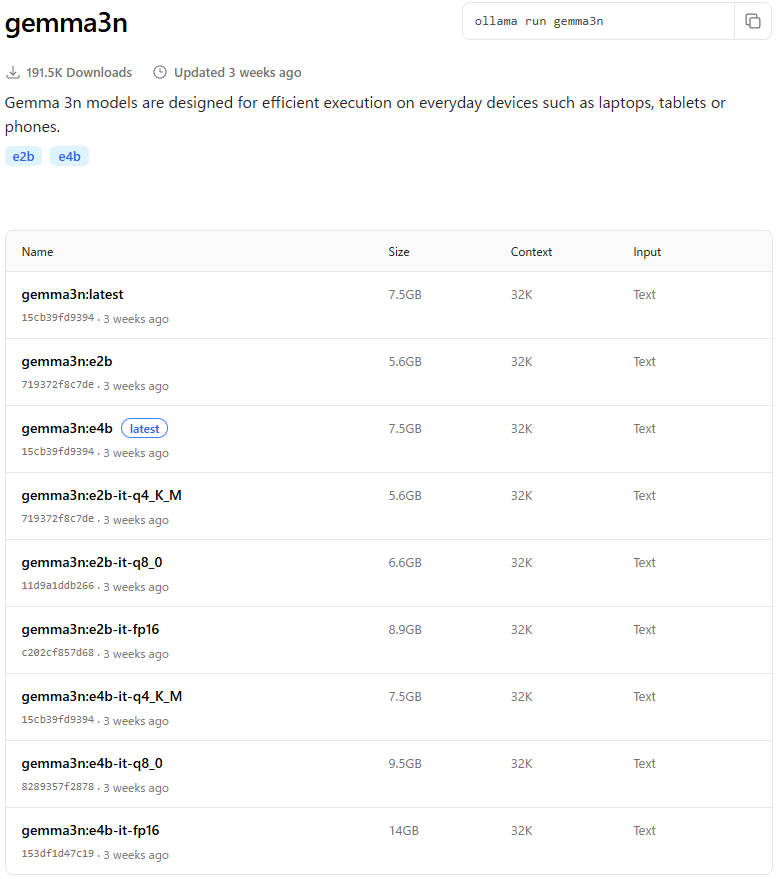
⇧「ollama run gemma3n」としてしまったのが良くなかったらしい...
各々の「モデル」を動作させるのに必要な「メモリ」は記載しておいて欲しい気がする...
ちなみに、吾輩のPCの「メモリ」は全部で「8 GB」しか無いので、昨今の「Raspberry pi 5」と同等の「メモリ」しか無い哀しさよ...
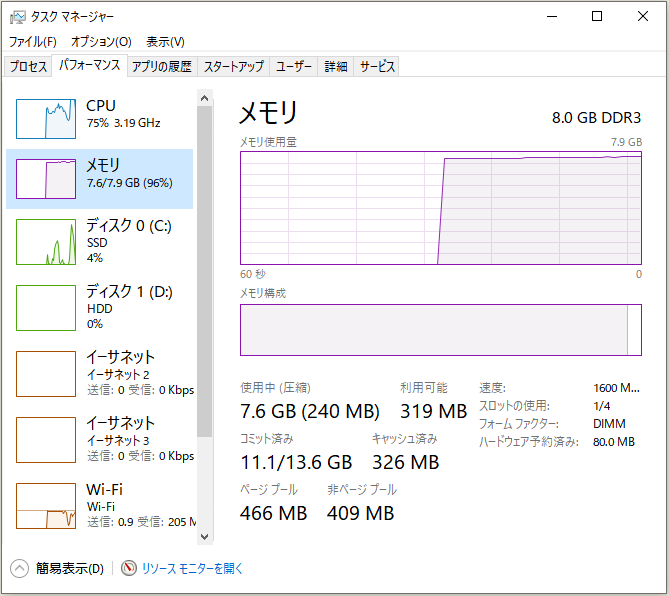
あとは、
⇧ 上記サイト様によりますと、デフォルトだと「Ollama」で稼働した「AI」の「モデル」は、別マシンからのリクエストを受け付けるようになっていないらしく、「Google」の公式ドキュメントが役に立たないことが分かりました...
■VagrantとVirtualBoxでAlmaLinux上にGemma 3nの環境構築をするのに必要な情報
D:.
│  Vagrantfile
└─vms
    └─slm_server
        │─conf
        │        ollama.service
        └─scripts
                download_Gemma3n_model_and_run.sh
                Installing_NVIDIA_GPU_Drivers.sh
⇧ といったファイルを用意する。
各々のファイルについては、以下のような内容。
■D:\work-soft\vagrant\gemma_3n\vms\slm_server\scripts\Installing_NVIDIA_GPU_Drivers.sh
#!/bin/bash

# Install necessary utilities and dependencies
echo 'Enabling EPEL repository...'
sudo dnf install epel-release -y
if [ $? -ne 0 ]; then echo 'Error: Failed to enable EPEL repository'; exit 1; fi
echo '[Success] EPEL repository enabled.'

echo 'Installing development tools...'
sudo dnf groupinstall "Development Tools" -y
if [ $? -ne 0 ]; then echo 'Error: Failed to install development tools'; exit 1; fi
echo '[Success] Development tools installed.'

echo 'Installing kernel-devel and kernel headers...'
sudo dnf install kernel-devel kernel-headers -y
if [ $? -ne 0 ]; then echo 'Error: Failed to install kernel-devel or kernel-headers'; exit 1; fi
echo '[Success] Kernel-devel and headers installed.'

echo 'Installing Dynamic Kernel Module Support (DKMS)...'
sudo dnf install dkms -y
if [ $? -ne 0 ]; then echo 'Error: Failed to install DKMS'; exit 1; fi
echo '[Success] DKMS installed.'

# Add the official NVIDIA repository
echo 'Adding NVIDIA repository...'
sudo dnf config-manager --add-repo http://developer.download.nvidia.com/compute/cuda/repos/rhel9/$(uname -i)/cuda-rhel9.repo -y
if [ $? -ne 0 ]; then echo 'Error: Failed to add NVIDIA repository'; exit 1; fi
echo '[Success] NVIDIA repository added.'

# Install required packages for building NVIDIA kernel modules
echo 'Installing packages required for NVIDIA driver...'
sudo dnf install tar bzip2 make automake gcc gcc-c++ pciutils elfutils-libelf-devel libglvnd-opengl libglvnd-glx libglvnd-devel acpid pkgconf -y
if [ $? -ne 0 ]; then echo 'Error: Failed to install required packages for NVIDIA driver'; exit 1; fi
echo '[Success] Required packages installed.'

# Install the NVIDIA driver
echo 'Installing NVIDIA driver...'
sudo dnf module install nvidia-driver:latest-dkms -y
if [ $? -ne 0 ]; then echo 'Error: Failed to install NVIDIA driver'; exit 1; fi
echo '[Success] NVIDIA driver installed.'

# Disable Nouveau driver
echo 'Disabling Nouveau driver to avoid conflict...'
sudo grubby --args="nouveau.modeset=0 rd.driver.blacklist=nouveau" --update-kernel=ALL
if [ $? -ne 0 ]; then echo 'Error: Failed to disable Nouveau'; exit 1; fi
echo '[Success] Nouveau driver disabled.'

# Secure Boot (if needed)
echo 'If your system has Secure Boot enabled, run the following to register the key for DKMS:'

# Uncomment the lines below if Secure Boot is enabled
# echo 'Running mokutil for Secure Boot...'
# sudo mokutil --import /var/lib/dkms/mok.pub
# if [ $? -ne 0 ]; then echo 'Error: Failed to import MOK key'; exit 1; fi
# echo '[Success] Secure Boot key registered.'

# Reboot the system for changes to take effect
# echo 'Rebooting system to apply changes...'
# sudo reboot
■D:\work-soft\vagrant\gemma_3n\vms\slm_server\conf\ollama.service
[Unit]
Description=Ollama Service
After=network-online.target

[Service]
ExecStart=/usr/bin/ollama serve
User=ollama
Group=ollama
Restart=always
RestartSec=3
Environment="PATH=/root/.local/bin:/root/bin:/usr/local/sbin:/sbin:/bin:/usr/sbin:/usr/bin" "OLLAMA_HOST=0.0.0.0:11434" "OLLAMA_ORIGINS=192.168.56.*"

[Install]
WantedBy=default.target
■D:\work-soft\vagrant\gemma_3n\vms\slm_server\scripts\download_Gemma3n_model_and_run.sh
#!/bin/bash

# 必要な依存パッケージのインストール
sudo dnf install -y curl git

# スワップ領域の作成(1GB)
if ! swapon --show | grep -q '/swapfile'; then
    echo "スワップ領域が未設定です。スワップ領域を作成します。"
    sudo fallocate -l 1G /swapfile  # 1GBのスワップファイルを作成
    sudo chmod 600 /swapfile  # 適切なアクセス権限を設定
    sudo mkswap /swapfile  # スワップ領域を作成
    sudo swapon /swapfile  # スワップを有効化
    echo "/swapfile none swap sw 0 0" | sudo tee -a /etc/fstab  # 起動時に自動でマウントされるように設定
else
    echo "スワップ領域はすでに設定されています。"
fi

# https://ai.google.dev/gemma/docs/integrations/ollama?hl=ja

# https://ollama.com/download/linux
curl -fsSL https://ollama.com/install.sh | sh

# インストール確認
if ! command -v ollama &> /dev/null; then
    echo "ollama のインストールに失敗しました。スクリプトを終了します。"
    exit 1
fi
echo "[Success] ollama インストール完了"

# インストールが完了したらバージョンを確認
ollama --version

# Gemma 3n モデルのダウンロード
# gemma3n:e2b モデルをダウンロード(必要に応じてコメントアウトを解除)
# echo "Gemma 3n モデルをダウンロード中..."
# ollama pull gemma3n:e2b

# ダウンロードされたモデルを確認
echo "インストールされているモデルを確認中..."
ollama list

# Gemma 3n プロセスの起動
echo "Gemma 3n:e2b を起動します..."

# 外部のマシンからのリクエストを受け付けるようにする
# VirtualBoxでホストからゲストにリクエストしたいので、「ホストオンリーアダプター」のIPアドレスの範囲を指定している
# https://github.com/ollama/ollama/blob/main/docs/faq.md
#export OLLAMA_HOST=0.0.0.0
#export OLLAMA_ORIGINS=192.168.56.*

sudo cp -p /etc/systemd/system/ollama.service /etc/systemd/system/bk.ollama.service
sudo cp /tmp/slm_server/conf/ollama.service /etc/systemd/system/ollama.service

sudo systemctl daemon-reload
sudo systemctl restart ollama

ollama run --verbose gemma3n:e2b

# エラーチェック
if [ $? -ne 0 ]; then
    echo "Gemma 3n:e2b の起動に失敗しました。ログを確認してください。"
    exit 1
fi

echo "[Success] Gemma 3n:e2b が正常に起動しました。"
■D:\work-soft\vagrant\gemma_3n\Vagrantfile
Vagrant.configure("2") do |config|

  # タイムアウトの増加
  config.vm.boot_timeout = 900

  config.vm.provider "virtualbox" do |vb|
    vb.memory = "6144"
#    vb.memory = "5120"
#    vb.memory = "4096"
#    vb.memory = "3072"
#    vb.memory = "2048"
#    vb.memory = "1024"
#    vb.cpus = 1
    vb.cpus = 2
    vb.gui = true
    vb.customize [
      "modifyvm", :id,
      "--ioapic", "on",
      "--graphicscontroller", "vmsvga",
      "--nicpromisc2", "allow-all"
    ]
  end

# https://github.com/dotless-de/vagrant-vbguest/issues/423
#  config.vbguest.installer_options = { allow_kernel_upgrade: true, auto_reboot: true }
#  config.vbguest.installer_hooks[:before_install] = ["dnf -y install bzip2 elfutils-libelf-devel gcc kernel kernel-devel kernel-headers make perl tar", "sleep 2"]

# Rocky Linux 9.6 / slm
#
  config.vm.define :slm do |slm|
    # 仮想ハードディスク
    slm.vm.disk :disk, size: "100GB", primary: true

    # 仮想マシンのOS
    # https://developer.hashicorp.com/vagrant/docs/boxes
    # https://portal.cloud.hashicorp.com/vagrant/discover/rockylinux/9
    # slm.vm.box = "rockylinux/9"
    # slm.vm.box_version = "6.0.0"

    # https://portal.cloud.hashicorp.com/vagrant/discover/almalinux/9
    slm.vm.box = "almalinux/9"
    slm.vm.box_version = "9.6.20250522"

    # https://stackoverflow.com/questions/43492322/vagrant-was-unable-to-mount-virtualbox-shared-folders
#    slm.vbguest.installer_options = { allow_kernel_upgrade: true }

    # NIC
#    slm.vm.network "private_network", mac: "00006c000103", ip: "192.168.111.103", virtualbox__intnet: true
    # ホストオンリーアダプター
    slm.vm.network "private_network", ip: "192.168.56.101"
    # 内部ネットワーク
    slm.vm.network "private_network", ip: "192.168.111.101", virtualbox__intnet: true

    # ホスト名
    slm.vm.hostname = "slm.gemma.3n.example.jp"
    # 仮想マシンの表示名(VirtualBox Manager上)
    slm.vm.provider "virtualbox" do |vb|
      vb.name = "slm_gemma_3n"
    end

    slm.vm.provision "shell", inline: $common_provisioning

#    # SELinuxを無効化
#    slm.vm.provision "shell", privileged: true, inline: <<-SHELL
#      sudo setenforce 0
##      sudo sed -i 's/^SELINUX=enforcing/SELINUX=disabled/' /etc/selinux/config
#    SHELL
#
#    # VBox Guest Additionsのインストールを強制
#    slm.vm.provision "shell", privileged: true, inline: <<-SHELL
#      sudo dnf -y update
#      # カーネルバージョンに合わせた開発ツールのインストール
#      # sudo dnf install -y kernel-devel-$(uname -r) gcc make perl bzip2 elfutils-libelf-devel
#      sudo dnf install -y gcc kernel-devel kernel-headers dkms make bzip2 perl
#      sudo sleep 2
#    SHELL

    # ゲストOSへシェルスクリプトファイルをコピー
    # INDIVA GPU
    config.vm.provision "file", source: "vms/slm_server/scripts/Installing_NVIDIA_GPU_Drivers.sh", destination: "/tmp/slm_server/scripts/Installing_NVIDIA_GPU_Drivers.sh"
    # OllamaのUnitファイル
    # 外部のマシンからのリクエストを受け付けるようにする
    config.vm.provision "file", source: "vms/slm_server/conf/ollama.service", destination: "/tmp/slm_server/conf/ollama.service"
    # Ollamaのダウンロードなど
    config.vm.provision "file", source: "vms/slm_server/scripts/download_Gemma3n_model_and_run.sh", destination: "/tmp/slm_server/scripts/download_Gemma3n_model_and_run.sh"

    slm.vm.provision "shell", privileged: true, inline: <<-SHELL
      chmod +x /tmp/slm_server/scripts/Installing_NVIDIA_GPU_Drivers.sh
      /tmp/slm_server/scripts/Installing_NVIDIA_GPU_Drivers.sh
      chmod +x /tmp/slm_server/scripts/download_Gemma3n_model_and_run.sh
      /tmp/slm_server/scripts/download_Gemma3n_model_and_run.sh
    SHELL
  end

end


#
# Common provisioning for all virtual machines
#
$common_provisioning = <<-'SCRIPT'
timedatectl set-timezone Asia/Tokyo
sed -e s/^'PasswordAuthentication no'/'PasswordAuthentication yes'/ /etc/ssh/sshd_config > /tmp/sshd_config
mv -f /tmp/sshd_config /etc/ssh/
chmod 0600 /etc/ssh/sshd_config
systemctl restart sshd.service
SCRIPT
⇧ 上記のファイルが準備できた状態で、「コマンドプロンプト」などを起ち上げて、「Vagrantfile」の配置されているディレクトリに移動して、「vagrant up」を実行する。
■「Vagrantfile」の配置されているディレクトリに移動
※ 自分は、「Dドライブ」を利用しているので以下のようなパスに移動していますが、各々の環境に合わせてください。
cd /d D:\work-soft\vagrant\gemma_3n
■「vagrant up」を実行する
vagrant up
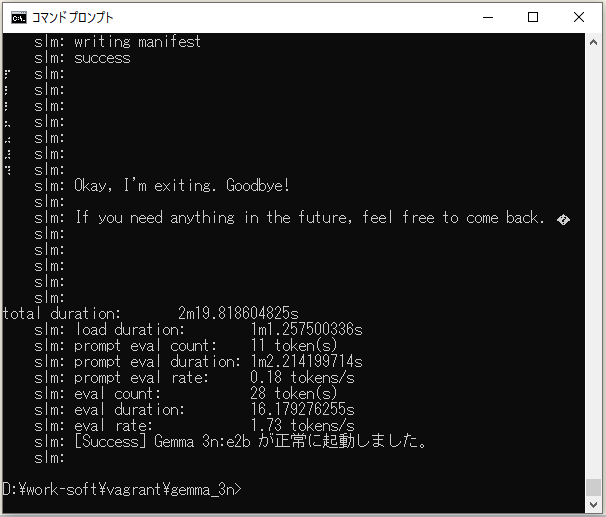
構築できると、「Ollama」の「run」コマンドで「Gemma 3n」のモデルが「インプット」を受け付けられる状態になるようなので、「サーバーサイド」の方は準備ができたことになる。
別の「コマンドプロンプト」を起ち上げて、「Ollama」のプロセスの状態を確認。
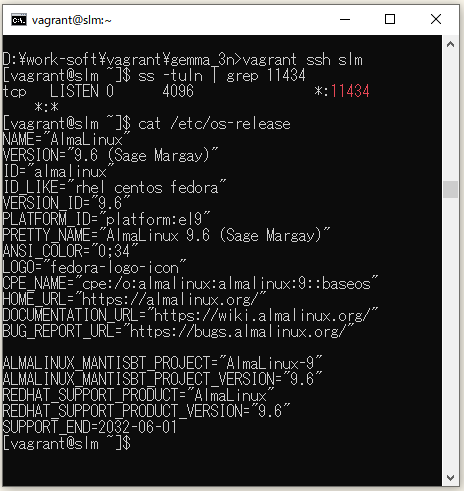
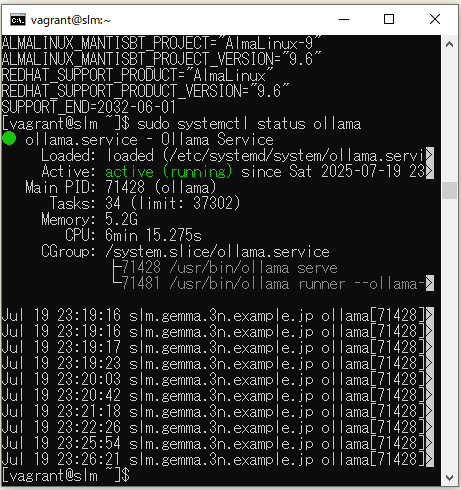
⇧ 常駐プロセスが稼働し続けている感じらしい。
「フロントエンド」側の実装は余力が無いので、「VirtualBox」の「ホストオンリーアダプター」に紐付く「IPアドレス」を指定して「curl」でHTTPリクエストを実施することで動作確認とします。
「Ollama で Gemma を実行する | Google AI for Developers」のページの『Ollama ローカル ウェブサービスを使用してレスポンスを生成する』に該当することを実施することになりますと。
「Windows」の「コマンドプロンプト」だと「ダブルクォーテーション」を「エスケープ処理」する必要があって非常に面倒臭い...
curl "http://192.168.56.101:11434/api/generate" -d "{\"model\": \"gemma3n:e2b\", \"prompt\": \"フランスの首都はどこですか?\"}"
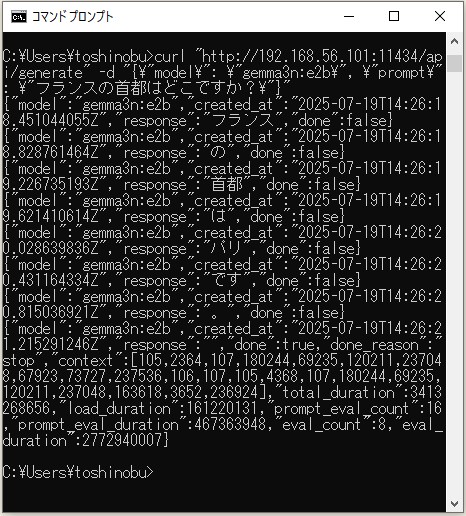
■ホストからゲストに対してリクエストを送信して、レスポンスが返って来ることを確認
C:\Users\toshinobu>curl "http://192.168.56.101:11434/api/generate" -d "{\"model\": \"gemma3n:e2b\", \"prompt\": \"フランスの首都はどこですか?\"}"
{"model":"gemma3n:e2b","created_at":"2025-07-19T14:26:18.451044055Z","response":"フランス","done":false}
{"model":"gemma3n:e2b","created_at":"2025-07-19T14:26:18.828761464Z","response":"の","done":false}
{"model":"gemma3n:e2b","created_at":"2025-07-19T14:26:19.226735193Z","response":"首都","done":false}
{"model":"gemma3n:e2b","created_at":"2025-07-19T14:26:19.621410614Z","response":"は","done":false}
{"model":"gemma3n:e2b","created_at":"2025-07-19T14:26:20.028639836Z","response":"パリ","done":false}
{"model":"gemma3n:e2b","created_at":"2025-07-19T14:26:20.431164334Z","response":"です","done":false}
{"model":"gemma3n:e2b","created_at":"2025-07-19T14:26:20.815036921Z","response":"。","done":false}
{"model":"gemma3n:e2b","created_at":"2025-07-19T14:26:21.215291246Z","response":"","done":true,"done_reason":"stop","context":[105,2364,107,180244,69235,120211,237048,67923,73727,237536,106,107,105,4368,107,180244,69235,120211,237048,163618,3652,236924],"total_duration":3413268656,"load_duration":161220131,"prompt_eval_count":16,"prompt_eval_duration":467363948,"eval_count":8,"eval_duration":2772940007}
⇧ とりあえず、ホストからゲストに対してリクエストを送信して、レスポンスが返ってくることを確認。
回答が細切れなのが気になりますが...
これで、「ChatGPT」っぽい「UI」画面側を作成すれば、簡易的な「AIチャット アプリケーション」の完成ということになるんかね?
「フロントエンド」側は詳しくは無いのだが、「axios」などの「HTTPクライアント」の「ライブラリ」を利用して、「curl」相当の処理を組み込んでいく感じかしらね...
ただ、「AI」の「モデル」は「インプット」の「バリデーション」とかできないらしいので、実用に堪え得る構成にするには、「フロントエンド」と「サーバーサイド」の間に「バリデーション用サーバー」を構築した方が良さそうね...
と言うのも、
生成AIモデルと他のツールをつなぐためのプロトコル「モデル・コンテキスト・プロトコル(MCP)」に脆弱(ぜいじゃく)性があり、アクセストークンなど機密性の高い情報が漏れてしまう可能性があることがわかりました。これは、モデルが悪意のある指示とそうでない指示を見分けられないために起こります。
⇧ 上記サイト様によりますと、「AI」の「モデル」にそのまま「インプット」を渡してしまうと目も当てられない惨状が引き起こされるリスクがあるそうな...
ちなみに、「GPU driver」をダウンロードしてきても、「reboot」すると「vagrant up」がその時点で終了してしまうので、有効にできていないんよね...
結論としては、「ソフトウェア開発」で利用するパソコンのスペックについては、最低限「RAM」が「16 GB」は欲しいよね...
欲を言えば、「小規模言語モデル(SLM:Small Lanaguage Model)」を扱うにしても、最低限「32 GB」ぐらいは欲しいかも...
「8 GB」だと何かと制約が多過ぎる...
毎度モヤモヤ感が半端ない…
今回はこのへんで。
